SSL coverage is not automatic so you will need to make some configurations for it to be enabled. You can learn how to configure your certificate below.
Locate Your SSL
From your No-IP account, click My Services on the left menu bar, then SSL Certificates.

Generate a CSR
You will need to generate a CSR. You can do this from your server or device you’re going to install the SSL on. If you are unsure of how to generate a CSR, check out our guides.
Upload CSR
Once you have created a CSR, navigate back to your No-IP account under My Services, then SSL Certificates.
Locate your SSL that needs the CSR added and click the Add CSR button.

In the pop up that appears is where you will paste the CSR you have generated.
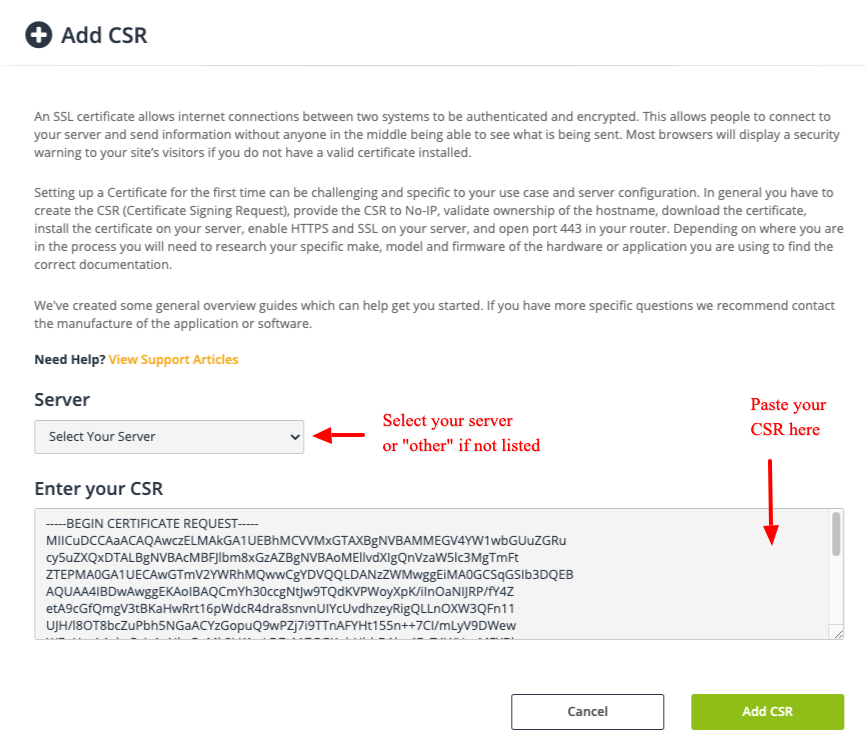
If your CSR was created incorrectly you may get and error here. Check out out this article if you get an error.
Click the Add CSR button to proceed. Next, you will need to enter your contact information for the SSL.
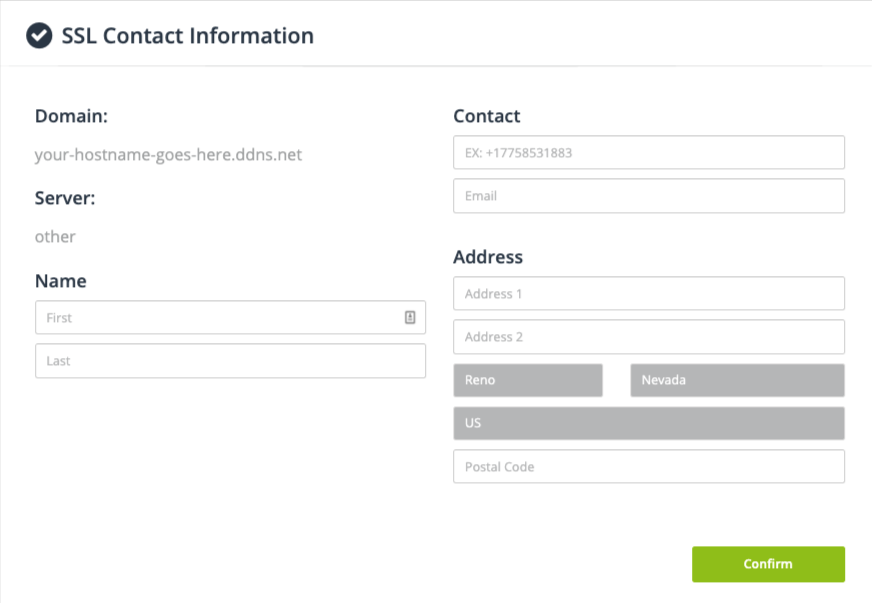
Click the Confirm button when finished.
SSL Validation
You will be given a TXT Value for verification. Since you have our DNS service, we have added this record automatically to the hostname listed in the CSR. If your SSL request is not verified within 24 hours, you may need to double check if the TXT record was added.

You will need to wait for the verification to complete. This can take up to an hour. During this time, the status of the SSL will be “Pending Verification”. The status will change to Active once this completes.

Download the SSL
Once verified, you can are able to download the appropriate SSL from your account, depending on the server type you are using, and install it on your device.
From your No-IP account, click My Services on the left menu bar, then SSL Certificates. Find your SSL and click the Download button.
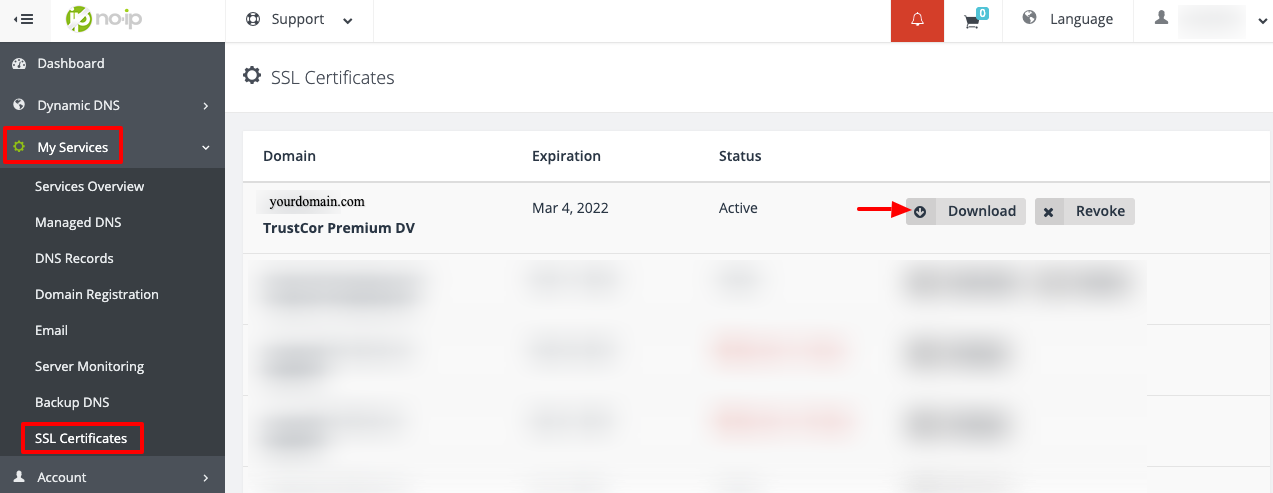
Install the SSL on Your Server
Select the SSL file type in accordance to the server you are installing it on. We recommend the PEM Chain, as this includes all the necessary certificates in one file.

Once installed and configured on your server, the hostname/domain will now be secured.